
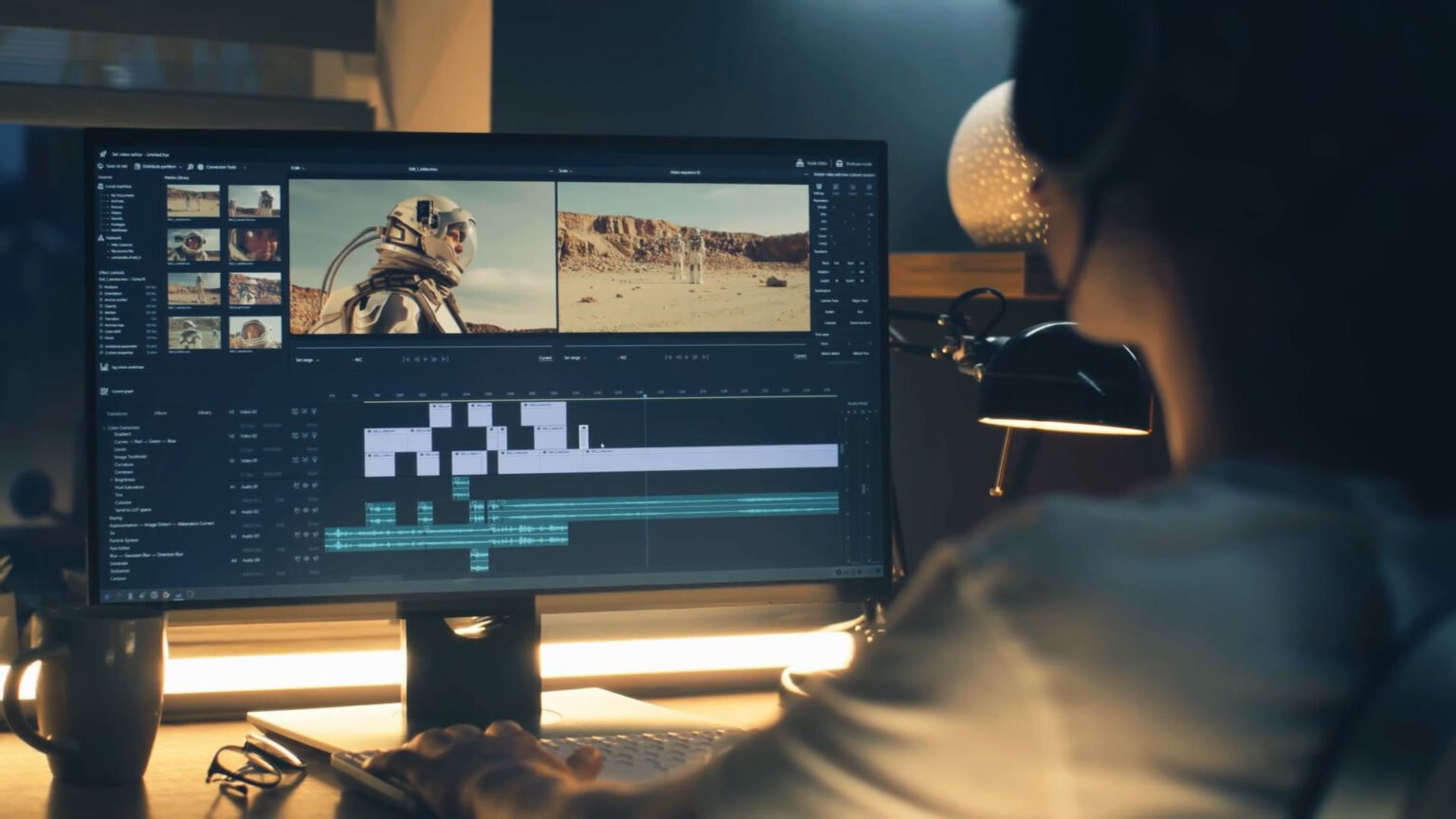
Editing a video on an iPhone is easier than many people think. You do not need professional skills or expensive software. Your iPhone already has the tools you need to create clean and attractive videos. This guide explains how to edit a video on iPhone step by step in simple language, making it perfect for beginners.
Why iPhone Is Popular for Video Editing
iPhones are widely used for video editing because they are fast, smooth, and easy to understand. The camera quality is high, and video editing apps work well on iOS devices. You can record, edit, and upload videos from one device without any trouble.
People use iPhone video editing for social media, online business, education, and personal memories.
Basic Requirements for Editing Videos on iPhone
To start editing videos on iPhone, you need very basic things. First, make sure your video is saved on your phone. Second, check that your iPhone has enough storage space. Third, decide whether you want to use the built-in editor or a third-party video editing app.
Once these things are ready, you can begin editing immediately.
Editing Videos on iPhone Using the Photos App
The Photos app is the simplest way to edit videos on iPhone. It is already installed and perfect for basic editing.
Open the Photos app and select the video you want to edit. Tap on the Edit option. You will see a timeline where you can trim the beginning or end of the video. This helps remove unnecessary parts.
The Photos app also allows you to adjust brightness, contrast, color, and sharpness. You can apply filters to improve the video’s look. The crop tool helps you fix video size or rotation. When finished, save the video by tapping Done.
What You Cannot Do in the Photos App
Although the Photos app is useful, it has limits. You cannot add text, background music, subtitles, or transitions. If you want to create more engaging videos, you will need a proper iPhone video editing app.
Best Apps to Edit Videos on iPhone
There are many apps that help you edit videos on iPhone. These apps give more control and creative options.
Some popular iOS video editing apps include iMovie, CapCut, InShot, VN Editor, and ClipN. Each app offers different tools, so you can choose one based on your needs.
How to Edit Videos on iPhone Using iMovie
iMovie is Apple’s own video editing app. It is free and easy to use.
After installing iMovie, open the app and create a new project. Choose your video clips and start editing. iMovie allows you to cut clips, add text, include music, apply transitions, and adjust video speed.
This app is good for people who want simple and clean video edits.
Trimming and Cutting Videos on iPhone
Trimming is one of the most important parts of video editing. It removes mistakes, silence, and extra footage.
You can trim videos using the Photos app or any iPhone video editor. Clean cuts make videos shorter and more enjoyable to watch.
Adding Text and Captions to Videos on iPhone
Text is helpful when viewers watch videos without sound. Captions, subtitles, and titles improve understanding.
Most video editing apps for iPhone allow you to add text easily. Use simple words and clear fonts. Make sure the text is readable and placed properly on the screen.
Adding Music or Voice to iPhone Videos
Music adds emotion and energy to videos. You can add background music or voiceover using video editing apps.
Always keep music volume low so it does not overpower the voice. Use copyright-free music, especially if you post videos online.
Editing Videos for Social Media on iPhone
Social media platforms prefer short and vertical videos. When editing videos on iPhone, use a vertical format for better results.
Adding quick cuts, captions, and clear visuals helps your videos perform better on platforms like Instagram, TikTok, and YouTube Shorts.
Turning Long Videos into Short Clips on iPhone
Many creators record long videos but share short clips. Short videos get more attention and are easier to watch.
Turning long videos into short clips helps you reuse content and reach more people.
How ClipN Helps iPhone Users
ClipN is a video editing tool mainly built for iOS devices such as iPhones and iPads. It helps users convert long videos into short clips quickly. ClipN is simple and focused, making it useful for creators who want fast results without complex editing steps.
It works well for interviews, podcasts, and long recordings that need short highlights.
Editing Videos on iPhone Using ClipN
To use ClipN, download the app and open it. Select a long video from your gallery and choose the part you want to turn into a short clip. Make small adjustments if needed and export the video.
This process saves time and helps you create short videos easily.
Cropping and Resizing Videos on iPhone
Different platforms require different video sizes. Cropping and resizing help your video fit properly on each platform.
iPhone video editing apps allow you to change video ratios such as vertical, horizontal, or square. Using the correct size improves video appearance.
Exporting Videos in Good Quality on iPhone
After editing, exporting the video in good quality is important. Most apps let you choose resolution and format.
Exporting in high resolution keeps the video clear and professional-looking.
Common Mistakes Beginners Should Avoid
Avoid using too many effects or adding long intros. Do not use loud music or unclear text. Shaky footage and poor lighting can reduce video quality.
Simple and clean editing works best.
Simple Tips for Learning Video Editing on iPhone
Start with short videos and practice regularly. Use easy apps and focus on basic editing first. Watch your own videos to see what needs improvement.
With time, your video editing skills will improve naturally.
Conclusion
Editing videos on iPhone is simple and accessible for everyone. With basic tools and iOS video editing apps, anyone can learn how to edit a video on iPhone. You do not need experience to get started.
By practicing and using the right tools, you can create videos that are clear, engaging, and ready to share.

 Arabic
 French
 Spanish
 Portuguese
 Deutsch
 Turkish
 Dutch
Dutch
 Italiano
 Russian
 Romaian
 Portuguese (Brazil)
 Greek
Greek